
Yes, Tinder compresses every photo you upload to keep the app fast and your data usage low. The quickest way to stop it wrecking your photos is simple: upload a high-quality, correctly cropped image in the first place, and use Photo Enhance only as a final touch-up, never as a fix for a weak original.
TL;DR:
- Upload high-resolution, correctly cropped images at least 640×640 pixels in a 1:1 or 4:5 aspect ratio to minimize compression artifacts.
- Avoid heavy cropping, digital zoom, or low-quality sources like screenshots and heavily edited images before uploading, as these worsen compression effects.
- Use external photo editors to finalize framing and export JPEGs with 88-92% quality, avoiding relying on in-app cropping or zooming after upload.
- Recognize that compression mainly affects softer or poorly lit photos; starting with sharp, well-lit images yields better profile quality.
- Test your profile on multiple devices with different screen resolutions to accurately assess how compressed photos appear to other users.
Table of Contents
- Why does Tinder compress your photos?
- Is it really compression, or is your photo just low quality?
- What size and format should your Tinder photos be?
- How to prepare and upload photos so compression barely shows
- Tinder's Photo Enhance: what it fixes and what it can't
- How to check if your upload actually got compressed badly
- What is actually known about Tinder's compression process?
- How Tinder's compression compares with other dating apps
- Does photo compression affect your match rate?
- What tools help you prepare photos for Tinder before uploading?
- How screen size and resolution change how compressed photos look
- Our take: technical fixes only get you halfway there
- Want to know which of your photos survives compression best?
- Where to check Tinder's own guidance
- Sources
Why does Tinder compress your photos?
Tinder compresses images because a dating app running on someone's mobile data can't afford to load full-resolution files every time a profile appears in the swipe deck. Every photo gets squeezed down in size so the app loads quickly on patchy 4G and doesn't chew through storage on servers holding millions of profiles.
That squeeze happens differently depending on how you upload. Server-side processing tends to prioritise consistent file sizes over pixel-perfect detail, trading a bit of sharpness for speed across the whole platform. Client-side handling, the compression that happens on your phone before the file even leaves it, can behave differently depending on your app version and device.
The mobile app and the web version don't necessarily process images the same way, either. That's one reason the same photo can look slightly different depending on how it was uploaded.
Compression only becomes visible when there isn't much detail to lose. A photo shot on a decent camera in good light survives the squeeze. A heavily cropped, upscaled, or badly lit image falls apart, because Tinder's on-device AI models rely on normalised face crops to process images, and there's less genuine data for them to preserve.
Is it really compression, or is your photo just low quality?
Before you blame the app, check the source. Most "Tinder ruined my photo" complaints trace back to problems that existed before the file ever left your camera roll.
Common culprits include:
- Low-resolution originals that were never big enough to begin with, especially old screenshots or images saved from messaging apps.
- Heavy cropping or digital zoom, which stretches a small section of pixels across a much bigger frame.
- Motion blur or high ISO noise from dim lighting, which compression then exaggerates.
- Repeated JPEG re-saves, where a photo has been edited, exported, and re-edited multiple times, each pass losing a little more fidelity.
If a photo looks soft before you've even uploaded it, Tinder's compression isn't the villain. It's simply compressing an already-compromised file.
What size and format should your Tinder photos be?
Getting the technical export right before you upload gives Tinder's compression far less to damage. Community testing and troubleshooting guides consistently point to the same targets, and DateOpus's breakdown of blurry Tinder photos backs this up.
- Minimum dimensions: aim well above 640×640 pixels; higher resolution originals give the app's compression more detail to work with, even after it shrinks the file.
- Aspect ratio: stick to 1:1 (square) or close to 4:5. Mismatched ratios force Tinder to auto-crop your image, often cutting off exactly the part you wanted visible.
- File format: high-quality JPEG is the safer default for everyday photos, since it balances file size with detail. PNG suits images with sharp edges or flat colour blocks, like graphic overlays, but it's overkill and unnecessary for standard portrait shots.
Exporting at the wrong ratio is one of the most common, and easiest to fix, causes of a badly framed profile photo. Get the canvas right before you upload, and you remove one whole category of problems.
How to prepare and upload photos so compression barely shows
Follow this sequence every time you add a new photo, and you'll dramatically cut down on visible artefacts:
- **Finish your crop and framing in an external editor first. Never rely on Tinder's in-app pinch-to-zoom to reframe a photo after upload, since reframing inside the app often triggers an extra compression pass.
- Export at a sensible quality setting. For JPEGs, something in the 88 to 92% quality range usually holds detail well without an unnecessarily bloated file size. Use PNG only for graphic-heavy images.
- Upload through the mobile app rather than the web version where possible. The app path tends to preserve more visible detail, so it's worth testing both if you're unsure.
- Turn off data saver mode before uploading, and clear the app's cache if you've recently updated it, since a stale cache can occasionally interfere with how new photos render.
- Upload two or three slightly different export versions and compare them directly on your profile to see which one holds up best.
Pro Tip: *Always keep your original full-resolution files archived somewhere safe.
Tinder's Photo Enhance: what it fixes and what it can't
Photo Enhance is Tinder's built-in tool for sharpening blurry areas and adjusting brightness or exposure on eligible face photos. You get a preview slider, so you can see the before-and-after and decide whether you actually prefer the enhanced version.
It's worth understanding what this feature is actually for. Photo Enhance corrects technical faults, soft focus, underexposure, that kind of thing. It doesn't reconstruct detail that was never captured in the first place. If your original photo was shot in poor light on an older phone, Enhance can help it look cleaner, but it can't invent pixels that simply don't exist.
A few practical notes:
- Photo Enhance only appears on photos where a face is detected and a technical issue is present, so it won't show up on every image you upload.
- Always compare both versions before saving. Sometimes the "enhanced" version looks slightly artificial, and the original holds up better.
- Treat it as a last-mile polish, not a rescue tool for a genuinely weak photo.
How to check if your upload actually got compressed badly
Once a photo is live on your profile, don't just assume it looks fine. Pull it up on a different device than the one you uploaded from and compare, since screen resolution and pixel density vary enough between phones to change how sharp an image appears.
Try uploading the same photo through both the mobile app and the web version if you have access to both, then compare which one renders more clearly. If one route consistently produces a cleaner result, stick with it for future uploads.
If something still looks soft, don't just accept it. Re-export the original at a marginally different quality setting and swap it in. Small adjustments, rather than wholesale re-edits, tend to solve the problem fastest.
What is actually known about Tinder's compression process?
Tinder hasn't published a detailed technical spec of its compression algorithm, and no credible source has reverse-engineered the exact parameters it uses. What is publicly documented, through Tinder's own engineering write-up, is the broader pipeline your photo passes through.
Before compression even happens, on-device AI models detect faces, normalise crops, and score images to help decide which of your photos get recommended as your strongest. That resizing step, adjusting an image to fit a standard canvas while trying to preserve aspect ratio, directly affects the pixel data the models work with and, ultimately, what gets displayed.
This matters practically because it tells you where to focus your effort. Instead of trying to guess Tinder's compression ratio or chase a mythical "perfect" export setting, the leverage point you actually control is the input: a well-lit, correctly framed face crop gives both the compression process and the on-device models more genuine detail to work with. A blurry, oddly cropped, or heavily edited source photo gives them next to nothing to preserve, no matter how the compression itself is tuned.
Tinder's terms and policies also play a role here, separate from technical compression. Some images get moderated or altered for content reasons rather than file size, so not every visible change to your photo is a compression artefact.
How Tinder's compression compares with other dating apps
Every major dating app compresses uploaded photos, for exactly the same underlying reason: fast-loading profiles matter more to daily usage than pixel-perfect fidelity. None of the big platforms, Tinder included, load full-resolution originals into the swipe deck.
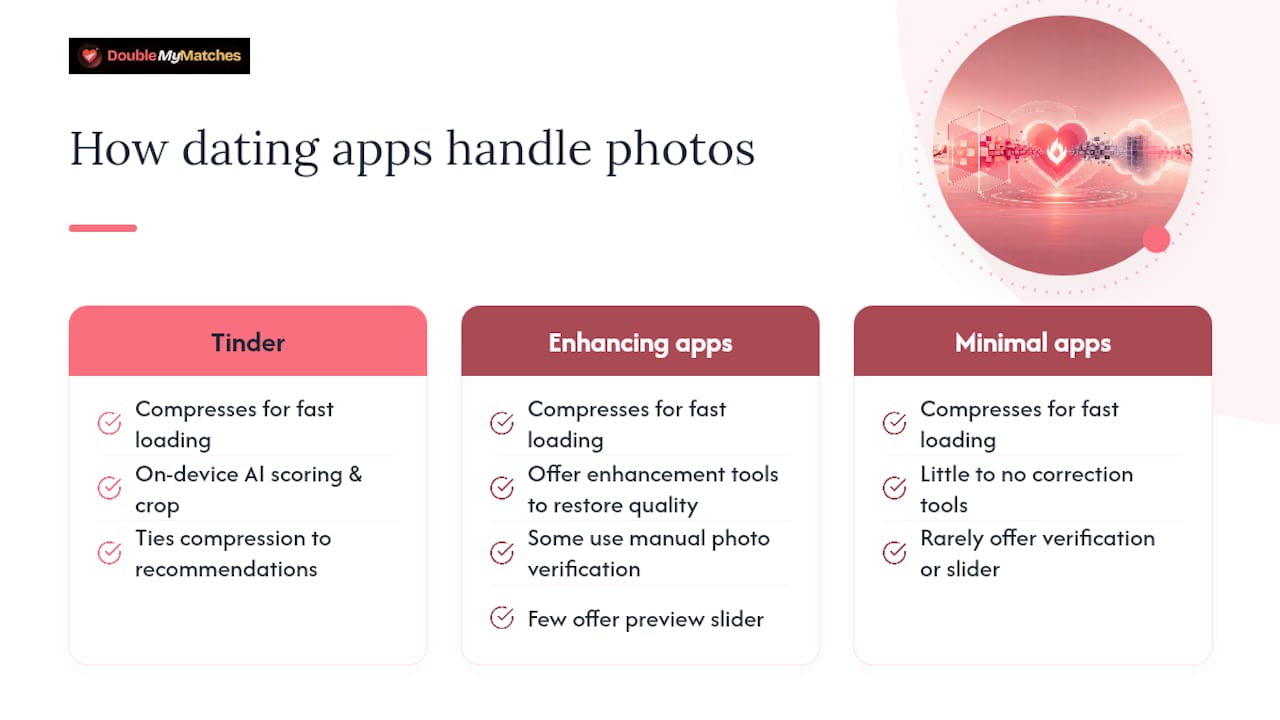
Where they tend to differ is in the extras layered around that core compression. Tinder's approach is distinctive for pairing compression with on-device AI scoring, using face detection and crop normalisation to help decide which of your uploaded photos gets shown first, as documented in its own engineering research. That's a step beyond simple file-size reduction; it's compression working alongside a recommendation system.
Other apps handle enhancement differently, some leaning more heavily on manual photo verification, others offering little to no built-in correction tool at all. Few competitors offer anything directly comparable to Photo Enhance's user-facing preview slider, where you get to see and reject an automated adjustment before it goes live.
The practical takeaway is the same across every platform, though: none of them are compressing your photo because they want it to look worse. They're all optimising for load speed at scale, and the apps that also offer enhancement tools are simply trying to claw back some of the quality lost in that trade-off. Whichever app you're using, the same rule holds. Give it a strong source image, and compression has far less to ruin.
Does photo compression affect your match rate?
A compressed, slightly softer photo is rarely the reason someone swipes left. What tends to actually hurt your match rate is a photo where compression exaggerates an existing weakness, murky lighting, an odd crop, or a face that's too small or unclear to register properly in a half-second glance.
Think about how someone actually uses Tinder: quick glances, fast decisions, often on a phone screen in bright daylight or low light. A photo that's already borderline in quality becomes genuinely hard to read once it's been through compression. If your face isn't clearly visible, sharply enough to convey expression and detail, you've lost the split-second attention that swiping decisions run on.
This is also where source quality and photo choice matter more than any export setting. A well-composed, well-lit photo of you smiling naturally will hold up through compression far better than a dim, cluttered, or heavily filtered shot, and it's more likely to earn a right-swipe in the first place regardless of file size. The technical fixes covered earlier in this guide (correct aspect ratio, sensible export quality, avoiding in-app zoom) protect the photo you've already chosen. They don't fix the underlying choice of which photo to use.
That's the gap most people miss. They'll spend twenty minutes fiddling with export settings on a photo that was never going to perform well, instead of spending five minutes figuring out which of their existing photos is actually the strongest.
What tools help you prepare photos for Tinder before uploading?
You don't need professional editing software to get a photo Tinder-ready, but a few practical tools make the process considerably easier.
For cropping and resizing to the right aspect ratio, any editor that lets you set a custom canvas, whether that's your phone's native photo editor or a free app, will do the job of getting you to 1:1 or 4:5 before you ever open Tinder. The goal is finishing that crop yourself rather than leaving it to in-app pinch-and-zoom.
For export quality, look for any tool that lets you control JPEG compression percentage directly rather than relying on an automatic "save" that strips metadata and quality indiscriminately.
Beyond pure technical prep, the harder problem is usually knowing which photo out of your camera roll is actually your strongest, before you've spent any time optimising it. That's a composition and selection question rather than a compression one, and it's where a dedicated Tinder photo analyser earns its place in the process: it scores your options so you're optimising the right file from the start, rather than perfecting a photo that was never your best foot forward.
How screen size and resolution change how compressed photos look
The same compressed file can look noticeably different depending on what it's viewed on, and this catches a lot of people out when they're troubleshooting a photo that "looks fine on my phone but blurry on hers."
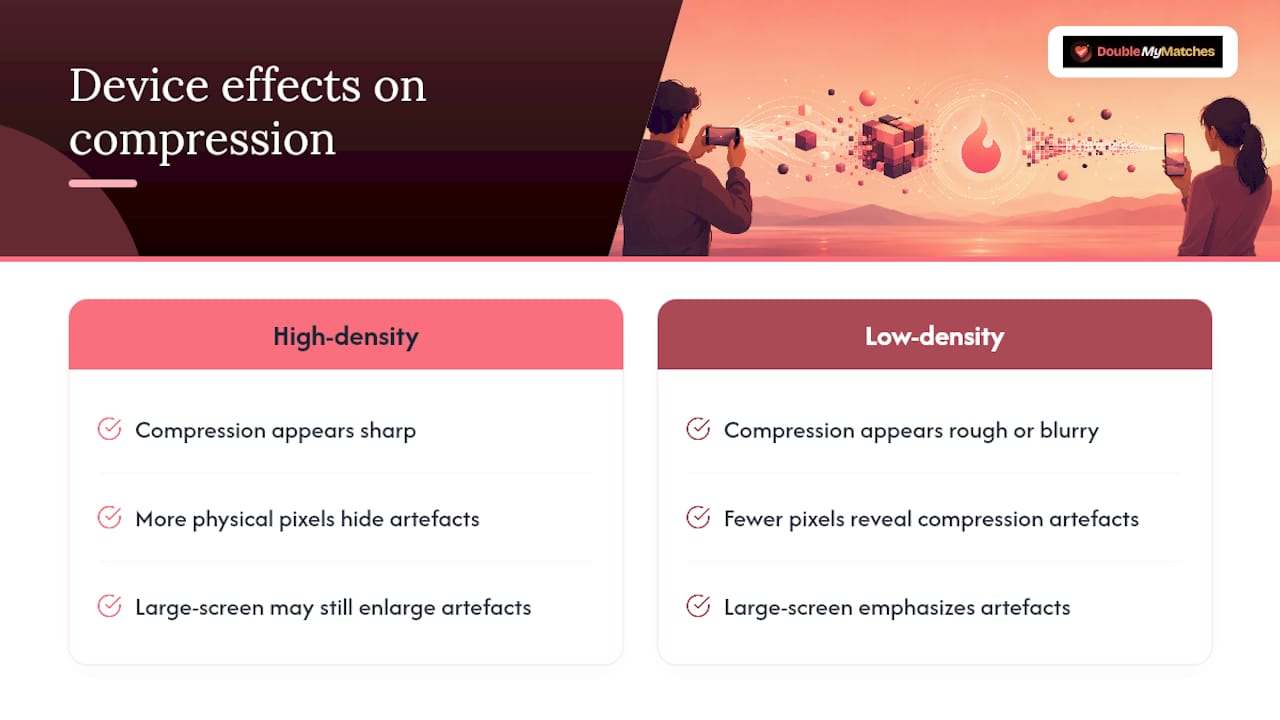
Higher pixel-density screens, the kind found on most recent flagship phones, render fine detail more forgivingly. A slightly compressed image can look perfectly sharp on a high-density display simply because there are more physical pixels available to smooth over the compression artefacts. Older or budget devices, with lower pixel density, show the same compressed file more roughly, because there's less screen resolution to hide the loss.
Screen size plays a role too, separate from pixel density. A photo viewed full-screen on a large phone gets stretched across more physical space than the same file viewed on a smaller device, which can make compression artefacts more visible simply because everything on screen is bigger.
This is exactly why testing your profile across more than one device matters more than most people realise. A photo that looks crisp on your own phone might reveal soft edges or blockiness on a friend's older device, or vice versa. If you only ever check your profile on the device you uploaded from, you're seeing a best-case view that other people swiping on your profile may not share. Comparing your upload on at least two different phones, ideally one older and one newer, gives you a far more honest read on how your photos are actually landing.
Our take: technical fixes only get you halfway there
Getting your export settings right matters, but it's not where most people lose matches. Composition, lighting, and expression decide whether a photo works long before compression ever touches it. A technically perfect export of a mediocre photo is still a mediocre photo.
This is exactly why we built DoubleMyMatches around AI photo analysis rather than editing tools. Our AI ranks which of your photos stay recognisable and appealing even after Tinder's compression does its work, so you're not guessing which one to lead with. Every photo is analysed once and then discarded, never published, never used to train anything.
— The Team @ DoubleMyMatches
Want to know which of your photos survives compression best?
DoubleMyMatches gives you something a compression guide can't: an honest ranking of your actual photos before Tinder ever gets its hands on them. Instead of guessing which shot to lead with and hoping the export settings save it, you get instant AI scoring across lighting, expression, and composition, ordered from strongest to weakest, so you know exactly which photo deserves the top slot.

It works alongside everything covered in this guide. You still prepare your files properly, correct aspect ratio, sensible export quality, mobile upload. What DoubleMyMatches adds is certainty about which photo is actually worth that effort. Every analysis is private: your photos get scored and then discarded, never stored, never used to train the AI.
Head to the dating photo analyser and upload your current lineup to see which photos are genuinely pulling their weight, and which ones are quietly holding your profile back.
Where to check Tinder's own guidance
For official detail, see Tinder's Photo Enhance help page and its terms and policies. For preparing your lineup, try DoubleMyMatches's Tinder photo size guide.
Sources
- Photo Enhance — Tinder Help Centre
- How on-device AI models find your best Tinder profile photos — Medium (Tinder engineering)
- Policies
- Why Tinder pics are blurry — DateOpus