
Upload your photo at a square size compatible with every placement in the app. That square canvas works across every placement in the app. If you want more vertical room, use 640×800 px instead, which approximates the 4:5 or 7:10 portrait ratio Tinder often displays. Either way, export as a high-quality JPEG, check the safe zones and you're done.
30-second action list:
- Crop your photo to 640×640 px (or 640×800 px for a portrait shot)
- Leave at least 10–15% margin at the top and sides so your face isn't clipped
- Export as JPEG at 80–90% quality in the sRGB colour space
Key takeaways
The single most important fix is uploading at 640×640 px with your face centred in the upper third of the frame, exported as a high-quality sRGB JPEG.
| Point | Details |
|---|---|
| Primary pixel size | Upload at 640×640 px (square) or 640×800 px (portrait) as your baseline canvas. |
| Safe-zone rule | Keep face and shoulders within the central 70–80% of the canvas; leave 10–15% margin at the top. |
| Export settings | JPEG at 80–90% quality, sRGB colour space, sourced from at least 1,200 px original. |
| In-app preview check | Always view the photo in both card and profile views after uploading to catch re-crop surprises. |
| AI crop check | DoubleMyMatches scores resolution, face placement, and likely crop outcome before your photo goes live. |
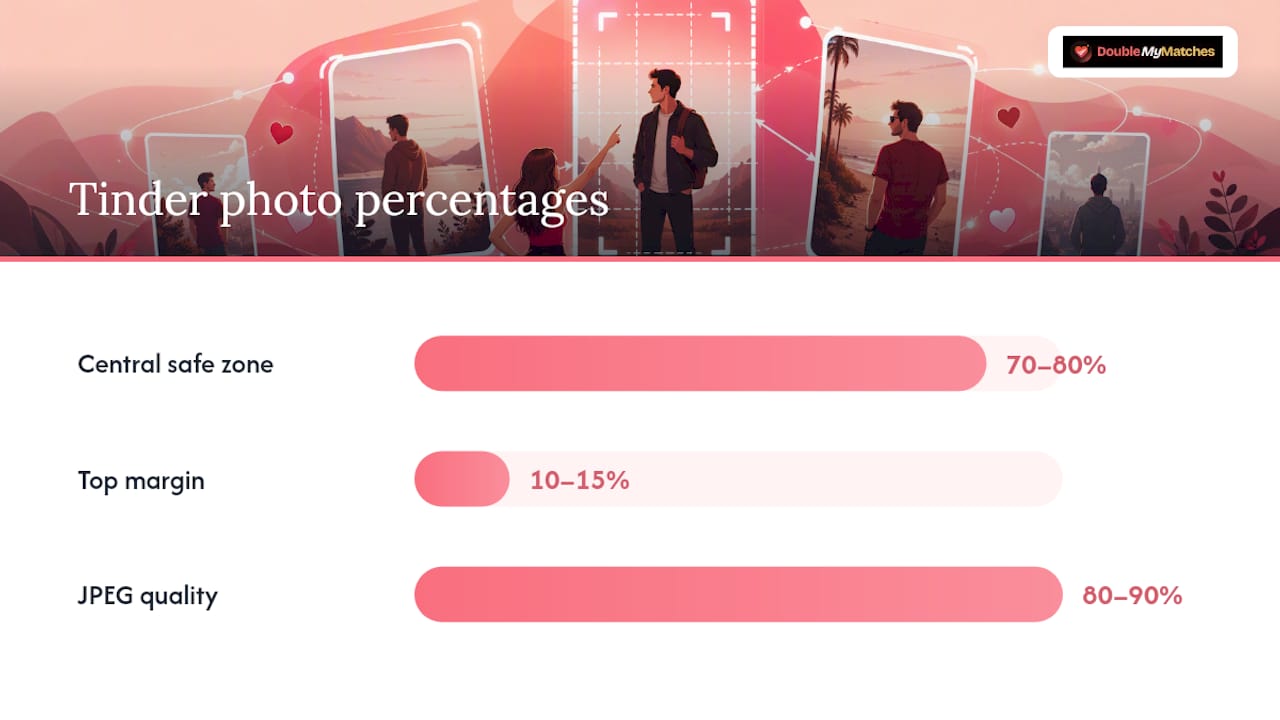
Table of Contents
- What does Tinder actually display? Pixel sizes and aspect ratios explained
- Why does Tinder sometimes zoom, crop, or reduce photo quality?
- How to crop and resize your Tinder photos on phone and desktop
- Safe zones and headroom so faces aren't chopped
- Best export settings to avoid blur and preserve colour
- Troubleshooting: fixes for blurry, pixelated or oddly cropped Tinder photos
- A short pre-upload checklist you can run in 60 seconds
- How our AI photo analysis checks whether a Tinder crop will work
- Why framing and size still matter more than most people think
- Your Tinder photos, scored and crop-checked by AI
- Sources
What does Tinder actually display? Pixel sizes and aspect ratios explained
The gap between what you upload and what Tinder shows is where most cropping problems start.
Instasize confirms that 640×640 px is the recommended upload canvas because it's compatible with every Tinder UI placement. Upload something smaller and Tinder stretches it, which introduces blur. Upload something very large and Tinder compresses it, which can reduce sharpness.
The square upload doesn't always stay square on screen. Some analyses report that Tinder displays photos at roughly 600×848 px in certain views, producing an effective 7:10 display ratio. That means a face centred in your square upload can drift toward the top of the visible area once the app applies its portrait crop.
| Upload canvas | Typical in-app display | Best for |
|---|---|---|
| 640×640 px (1:1) | Re-cropped to ~7:10 in portrait views | Consistency across all placements |
| 640×800 px (4:5) | Closer match to portrait display | Shots where vertical framing matters |
When to choose which:
- Use a square format when you want a single file that works everywhere without thinking about it.
- Use a taller portrait crop when your composition has important detail near the bottom of the frame that a square crop would cut.
PhotoAiD's guide also confirms 640×640 as the required upload dimension and offers a converter to prepare photos for correct cropping if you're starting from a non-square original.
Why does Tinder sometimes zoom, crop, or reduce photo quality?
Three things cause this, and they're all fixable once you know what's happening.
Face detection and auto-centring. Tinder's app detects faces and tries to keep them visible across different UI placements: the card stack, the profile view, and the match screen. Each placement has a slightly different crop area, so the app re-centres your photo automatically. A face placed near the edge of your upload can end up partially cropped in one view even if it looks fine in another.
Server-side compression. Tinder compresses images after upload to reduce load times. Photos that start at a very high resolution lose more detail during this compression step than photos already sized close to the display target. Conversely, photos uploaded below 640 px get stretched, which creates pixelation.
Common cause-and-effect pairs:
- Low-resolution original → pixelation after compression
- Face too close to the top edge → head clipped in portrait view
- Very large file (e.g., a raw camera export) → heavy compression artefacts
- Unusual aspect ratio → aggressive re-crop to fit the display frame
Pro Tip: Always start from a photo with a high resolution before you resize down to the target size. Downsampling from a larger source gives Tinder's compression algorithm less visible damage to work with.
How to crop and resize your Tinder photos on phone and desktop
Pick the workflow that matches where you're starting from.
On your phone
- Open your phone's built-in photo editor (Photos on iPhone, Gallery on Android).
- Select the crop tool and set the aspect ratio to 1:1 (square) or 4:5 (portrait).
- Drag the crop frame so your face sits in the upper third of the canvas, with clear space above your head.
- Zoom out slightly if the app auto-zooms in; you want breathing room around your face and shoulders.
- Save the cropped version as a new file so you keep the original.
- Upload to Tinder, then tap your profile to check the preview in the card view.
On desktop
- Open the photo in Photoshop, GIMP, or a free online resizer.
- Set the canvas to either a square or a portrait ratio canvas around 640 pixels wide.
- Position your subject so the face is in the upper third and shoulders are visible.
- Export as JPEG at 80–90% quality (see the export section below for exact settings).
Free online tools: Instasize's Tinder resizer lets you upload a photo and output it at the correct Tinder preset dimensions with a live crop preview. PhotoAiD offers a similar converter with a Tinder-specific template.
Checking your crop in the app: after uploading, tap your profile icon, then tap the photo. The card-stack view and the full-profile view crop slightly differently. Take a screenshot of each and zoom in to confirm your face and shoulders are fully visible.
A quick note on Tinder's built-in edit tool: Tinder Help confirms you can tap Edit on your profile to reposition photos inside the app. This is useful for fine-tuning, but in-app repositioning doesn't guarantee the same framing across every Tinder view. Pre-cropping before upload gives you more control.
Safe zones and headroom so faces aren't chopped
Getting the pixel dimensions right is only half the job. Where you place your subject inside those dimensions decides whether the app's re-crop works in your favour.
When Tinder re-crops to a portrait ratio, the sides get trimmed first, then the bottom. The top is usually preserved, but a subject placed too high can still lose the top of their head.
Practical framing rules:
- Position the top of your head about one-fifth of the way down from the top edge
- Keep both shoulders inside the frame; cutting off one shoulder looks awkward in the card view
- Avoid placing your face to the left or right of centre; off-centre compositions can look great in a standalone photo but get clipped when the app trims the sides
Anything outside those guides is at risk of being trimmed. Delete the guides before exporting.*
A second composition check worth doing: after you upload, view your profile from the card-stack perspective (ask a friend to find you, or use Tinder's Boost preview if available). The card view is the first impression, and it's the most aggressively cropped placement.
Best export settings to avoid blur and preserve colour
The right export settings mean Tinder's compression has less to damage.
File format: use JPEG for photographs. PNG works for graphics or images with flat colour areas, but for a typical portrait photo, JPEG at high quality produces a smaller file with no visible loss at Tinder's display size.
Colour space: export in sRGB. Tinder's servers and most mobile screens expect sRGB. A photo exported in Adobe RGB or Display P3 can look desaturated or colour-shifted after upload because the app doesn't convert the colour profile correctly.
Resolution and downsampling: export at your target canvas (640×640 or 640×800), but start from a source file of at least 1,200 px on the long edge. Downsampling from a larger original produces a sharper result than exporting at exactly 640 px from a 640 px source, because the resize step averages pixel values rather than discarding them.
Export checklist:
- File type: JPEG (photos) or PNG (graphics)
- Quality: 80–90%
- Dimensions: 640×640 px or 640×800 px
- Colour space: sRGB
- Source file: at least 1,200 px on the long edge before downsampling
Troubleshooting: fixes for blurry, pixelated or oddly cropped Tinder photos
If your upload looks wrong in the app, run through these checks before re-shooting.
Blurry or pixelated photo: The original file was too small. Check the pixel dimensions of the file you uploaded. If it's below 640 px on either side, re-export from the original camera file at the correct dimensions. Never re-save a photo that's already been compressed once; go back to the original.
Face cut off at the top: Your subject is placed too high in the canvas.
Photo looks fine on upload but wrong in the card view: Tinder applies different crops to different placements. Use the Tinder Help edit tool to reposition, or re-crop your source file to 640×800 px so the portrait display has more vertical content to work with.
Washed-out or odd colours: Export colour space is likely not sRGB. Re-export with sRGB selected and re-upload.
Still looks compressed after re-uploading: Try uploading from a desktop browser rather than the mobile app. Mobile uploads sometimes apply an additional compression step before the file reaches Tinder's servers. A desktop upload tends to preserve more of your export quality.
Quick checks before blaming the app:
- Confirm the original file is at least 640×640 px
- Check that the export quality was set to 80–90%
- Verify the colour space is sRGB
- Compare the app preview to the file on your device; if they differ, the app is re-cropping
A short pre-upload checklist you can run in 60 seconds
Save this list as a note on your phone and run through it every time you add a new photo.
- Dimensions correct: file is 640×640 px or 640×800 px
- Safe zones clear: face and shoulders are within the central 70–80% of the canvas
- Headroom present: at least 10–15% clear space above the top of your head
- File type: JPEG (or PNG for non-photographic images)
- Quality: exported at 80–90% JPEG quality
- Colour space: sRGB
- Preview checked: viewed the photo in both the card and profile views inside the app
- Original backed up: the unedited source file is saved separately
How our AI photo analysis checks whether a Tinder crop will work
Getting the dimensions right is a technical fix. Getting the photo to actually perform is a different question, and that's where automated analysis helps.
DoubleMyMatches's Tinder photo analyser runs several checks on each photo you submit:
- Resolution check: confirms the file meets the 640 px baseline and flags photos likely to pixelate after Tinder's compression
- Face detection: locates the face within the frame and assesses whether it sits within the safe zone for portrait re-crops
- Composition scoring: evaluates framing, headroom, and subject placement against what tends to perform well in card-stack views
- Exposure and lighting: checks for overexposure, harsh shadows, or low-contrast conditions that reduce visual impact at small display sizes
- Likely crop outcome: maps the uploaded canvas to Tinder's known display ratios and flags anything that may be clipped
The methodology is straightforward: you upload your photos, the AI scores each one and orders them from strongest to weakest, and you get per-photo feedback with specific suggestions (re-crop, replace, adjust framing). Photos are analysed privately and discarded after the report is generated; they're never published or used to train the model.
Pro Tip: If a photo scores poorly on crop outcome, try the 640×800 canvas version of the same shot before switching to a different photo entirely. A reframe often fixes the problem without a reshoot.
After a low score, the practical next steps are: re-crop using the feedback, re-upload the adjusted version, and run the analysis again to confirm the fix before the photo goes live on your profile.
Why framing and size still matter more than most people think
There's a tendency to treat photo sizing as a box-ticking exercise: hit the right pixels, move on. The reality is that the crop Tinder applies to your photo is the first visual decision a potential match makes about you, and it happens in under a second.
A technically correct 640×640 upload with a poorly placed subject still gets cropped in ways that cut off your face or leave dead space where your expression should be. The pixel dimensions are the floor, not the ceiling. What sits inside those dimensions, and how it survives the app's re-crop, is what actually drives right-swipes.
Getting both right, the correct Tinder photo dimensions and a composition that holds up under re-cropping, is the combination that makes a profile photo work consistently across every placement in the app.
Your Tinder photos, scored and crop-checked by AI
Sorting out your photo dimensions is the technical foundation. But if you want to know whether your photos are actually strong enough to get right-swipes, DoubleMyMatches's Dating Photo Analyser gives you a fast, private answer.
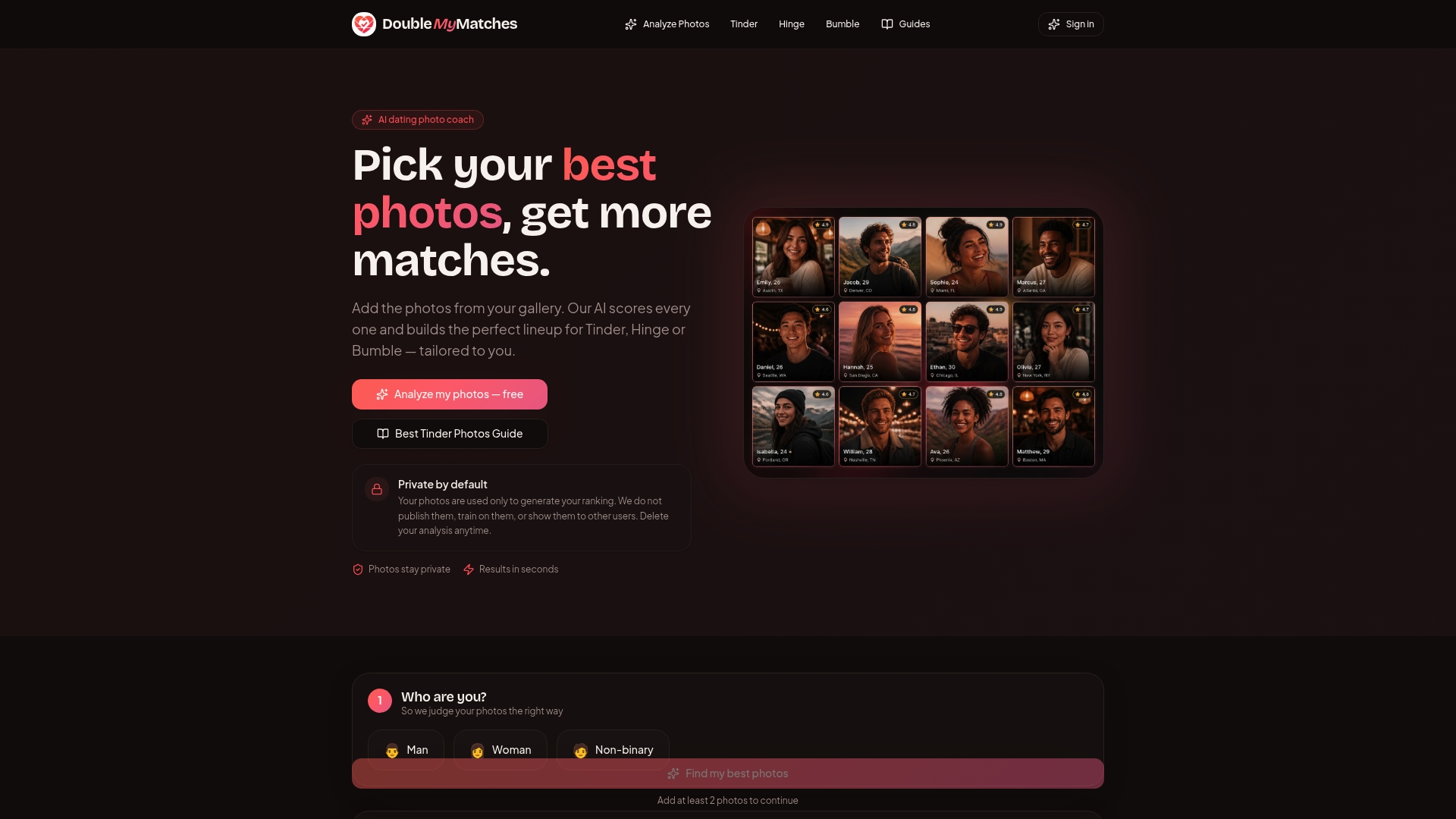
Upload your photos and the AI scores each one for resolution, face placement, composition, lighting, and likely crop outcome across Tinder's display placements. You get an instant ranking from strongest to weakest, plus specific feedback on what to fix. Photos are analysed once and then discarded; nothing is stored or used for training.
The profile picture tester is the quickest way to check a single photo before it goes live. Run your newly cropped 640×640 through it, confirm the score, and upload with confidence.
Sources
Official Tinder guidance:
- Tinder Profile Photo Resizer - Resize to 640x640 Free
- Tinder photo in 2026 (size, aspect ratio & online converter)
- Editing your profile
Free resizer and converter tools:
DoubleMyMatches tools: